Key Takeaways
- A recent automatic NVIDIA App update enabled an AI agent control setting by default, giving agents very permissive rights over the app.
- According to the public warning, those rights include viewing your game library, changing settings and using screen recording functions.
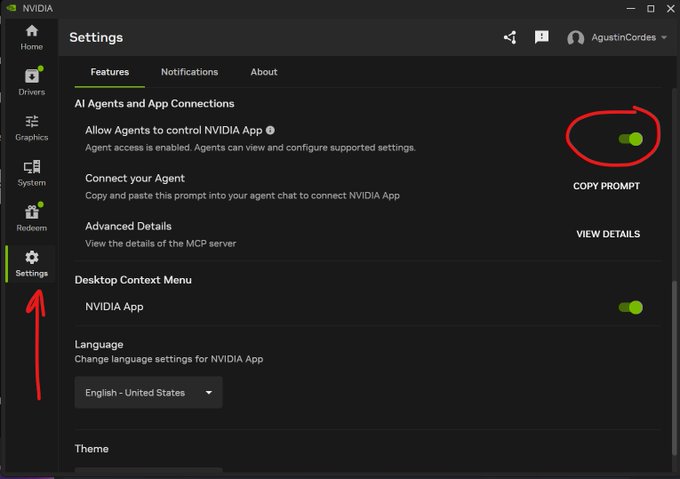
- The toggle is on by default after updating, so you have to open the app's settings and turn it off manually if you do not want it.
- No public build, download or official page for this feature has been published yet; the change is being reported from users' own app screens, so check your installed version and the official site.
Quick Facts
| Type | Default AI agent permission in a desktop app |
|---|---|
| Devices | Windows PCs running the NVIDIA App |
| Price | Part of the free NVIDIA App; no separate purchase |
| Languages | Depends on your NVIDIA App install; check the official site |
| Highlight | Agents can view library, change settings and record |
| Learning curve | Easy to disable once you find the right settings menu |
| Category | Tech Buzz |
| Creator | Agustín Cordes |
| Heat | 🔥 1.8M Heat |
| Last updated |
What the NVIDIA App Actually Does, and What Changed
The NVIDIA App is NVIDIA's official desktop utility for Windows PCs. It handles driver updates, applies recommended graphics settings for games, and provides screen recording and performance overlays. Millions of players install it because it is the simplest way to keep a GeForce card updated and tuned. Because it updates itself automatically, changes to its defaults can reach a large audience without anyone actively choosing them.
The recent controversy is not about a new game or a new graphics card. It is about a permission. After an automatic update, the app enabled by default a setting that allows AI agents to control the app with very permissive rights. Developer Agustín Cordes publicly flagged this on October 15, 2026, describing it as a privacy invasion and a high security risk that users may not want.
The important nuance is that this is a default, not a forced state. The setting can be changed, but it starts switched on, which means the burden falls on users to notice it and decide. That is the core of the complaint: not that the capability exists, but that it arrived quietly and enabled.
- It is a permissions story, not a performance story
Nothing here changes frame rates or driver quality. The issue is what the app is allowed to do on your behalf and who or what can direct it.
- Automatic updates widen the blast radius
Because the NVIDIA App updates itself, a changed default can appear on many machines at once, including on PCs whose owners never opened the settings menu.
- The warning came from a developer, not a formal advisory
Agustín Cordes raised it publicly as a heads-up to other PC gamers. Treat it as a credible user report and verify the state of your own app.
What AI Agents Can Do Once the Toggle Is On
According to the public warning, the enabled setting grants AI agents access to three broad areas of the app. First, they can see your game library, meaning the list of titles the app knows you own or play. Second, they can change settings, which in an app like this can include graphics profiles and optimization preferences. Third, they can use screen recording functions.
That combination matters because these are not read-only conveniences. An agent that can both read your library and alter settings has a meaningful degree of control over your gaming environment. Screen recording adds another dimension: recordings can capture whatever is on screen, which may include personal information, chat windows or other applications.
The phrase used in the warning is very permissive rights, and that is the key phrase to understand. The concern is not a single narrow permission but a bundle that together gives an automated system wide latitude inside a utility that sits close to your hardware and your display.
- Game library visibility
An agent can see which games the app has registered. On its own this is modest, but it becomes more sensitive when combined with other permissions.
- Settings modification
Agents can change app settings, which may affect graphics profiles and optimization choices you previously set yourself.
- Screen recording access
Recording functions are powerful because they capture visual output. Anything visible on screen during a recording could be included.
- Why permissive defaults are risky
Defaults are what most people keep. A permissive default means many users grant broad access without ever making a conscious decision.
How to Check and Disable AI Agent Control Step by Step
The fix is straightforward once you know where to look, but it requires opening the app rather than relying on a notification. Start by launching the NVIDIA App on your PC and making sure it has finished any pending update, so you are looking at the current settings rather than an older layout. Menu names can shift between versions, so read labels rather than memorizing positions.
Next, open the settings area and look for a section related to AI agents, assistants or permissions. The exact wording is not confirmed across versions, so scan for terms like agent, assistant or AI. When you find the control that allows agents to operate the app, switch it off unless you specifically want that behavior.
After changing it, close and reopen the app to confirm the setting held, and check again after the next automatic update, since updates are exactly how this default arrived in the first place. If you cannot find the option, consult the official site, nvidia.com, for documentation matching your app version, and consider reporting the discrepancy so others can find it too.
Who Should Care, What Is Still Unclear, and What to Watch Next
The people most affected are ordinary PC gamers who installed the NVIDIA App for drivers and never expected to manage AI permissions. Enthusiasts who already tune every setting will find this quickly. Everyone else may not, which is precisely why a default matters. If you record gameplay, stream, or keep personal windows open while gaming, the screen recording angle deserves extra attention.
Several things remain unconfirmed. There is no public build, download or official page dedicated to this feature, and the creator has so far only shown it in a short preview video and announcement. That means details such as exact menu names, the full scope of agent rights, whether the behavior varies by app version or region, and what safeguards exist are not settled. Verify specifics against your own installation and the official site.
Looking ahead, watch for three signals: whether NVIDIA clarifies or adjusts the default, whether the setting gains clearer in-app explanation and consent prompts, and whether similar agent permissions spread to other hardware and launcher utilities. The broader lesson is that AI features shipped as defaults turn every user into a permissions administrator, whether they asked for the role or not.
- Compare with how other launchers handle AI
Many game launchers and hardware utilities are adding assistant features. The useful comparison is whether those features are opt-in or opt-out by default.
- Limitations of the current reporting
The warning describes the setting and its risks but does not publish a formal audit. Treat menu paths and exact wording as version-dependent until confirmed.
- A practical habit for any auto-updating app
After major updates, spend two minutes reviewing new permission toggles. It is the cheapest defense against silent default changes.
Step-by-Step Guide
Open the NVIDIA App and let updates finish
Launch the app on your Windows PC and allow any pending update to complete. You want to inspect the current version, because settings layouts and labels can change between releases.
Go to the settings area
Open the app's settings or preferences. Look for a category mentioning AI, agents, assistants or permissions. Exact naming is not confirmed across versions, so scan the list rather than assuming a fixed position.
Find the agent control toggle
Locate the option that permits AI agents to control the app. The public warning says it is enabled by default after updating, so expect it to be switched on when you first look.
Turn it off unless you want it
Disable the toggle if you do not actively want agents managing your library, settings or recordings. If you do want it, keep it on knowingly and review what it can access.
Recheck after every update
Close and reopen the app to confirm the change stuck, then check again after future automatic updates. If the option is missing, consult the official site, nvidia.com, for your app version.
Frequently Asked Questions
Is the NVIDIA App AI agent control setting really on by default?
According to the public warning from developer Agustín Cordes, yes. The automatic update enabled a setting that allows AI agents to control the app with very permissive rights, and it was switched on by default. Because defaults are rarely revisited, the practical advice is to open your app's settings and verify the current state yourself rather than assuming.
What exactly can an AI agent do once this is enabled?
The reported permissions cover three areas: viewing your game library, changing settings, and using screen recording functions. Together these give an agent meaningful control over your gaming environment and potentially over what appears in recordings. The full technical scope has not been published in detail, so treat this as the reported summary and check the official site for specifics.
How do I turn it off?
Open the NVIDIA App, go to its settings, and look for a section about AI agents, assistants or permissions. Find the control that lets agents operate the app and switch it off. Menu names may differ by version, so read the labels carefully, then reopen the app to confirm the change persisted.
Is there a public build or official page for this feature yet?
No. No public build, download or dedicated official page has been published so far, and the creator has only shown it in a short preview video and announcement. That means some details remain unconfirmed. For authoritative information, check the official site, nvidia.com, and your own installed app version.
Why is a permissive default considered a security risk?
A default is what most users keep, so a permissive default effectively grants broad access at scale without individual consent. An agent that can read your library, alter settings and record your screen has more reach than most people expect from a driver utility. Disabling it costs little if you do not use agent features.