Key Takeaways
- Browser Blackboard is a free browser-based blackboard simulator by Hinemosu Ryota, released on October 15, 2026, and playable on PC and smartphones with no install or account.
- You write by tracing your finger or mouse across the board, erase by tapping again to clap the chalk, or wipe everything with the clear-all button.
- Sliders for vividness, thickness and color let you mimic real chalk; the board uses the UD Digital Textbook font N-R for its printed labels.
- There is no score or win condition, so it is a sandbox toy for doodles, handwriting practice and sharing screenshots under #BrowserBlackboard.
Quick Facts
| Type | Free browser blackboard simulator |
|---|---|
| Devices | PC and smartphone browsers |
| Price | Free, no app or account |
| Languages | Japanese interface; check official site |
| Highlight | Realistic chalk texture and clap-to-erase |
| Learning curve | Very easy, trace to write |
| Category | Browser Games |
| Creator | ひねもすリョータ |
| Official site | kokuban-2j2.pages.dev ↗ |
| Heat | 🔥 977.6K Heat |
| Last updated |
What Browser Blackboard Is and Why It Is Trending
Browser Blackboard is a small web toy from Japanese indie developer Hinemosu Ryota, published on October 15, 2026. It recreates the feel of a school blackboard: you drag your finger or mouse across the surface and a chalk line follows, complete with a slightly grainy texture. There is nothing to download and nothing to sign up for, so the whole experience starts the moment the page loads on a PC or phone browser.
What makes it stand out is how physical the interaction feels. Instead of a standard drawing app with layers and brushes, you get one board, a few chalk controls and a clap-to-erase gesture that mimics knocking chalk dust off your hand. That simplicity is why people have been sharing their boards under the #BrowserBlackboard hashtag, comparing handwriting, doodles and nostalgic classroom jokes.
The board itself is not blank in a sterile way. Faint printed labels such as quadratic function and the days of the week appear on the surface, and the text uses the UD Digital Textbook font N-R, which gives it the look of a real Japanese classroom board. Those details are cosmetic, but they set the mood and make even a quick scribble feel like it belongs in a classroom.
- Free and instant
No install, no login and no payment are required. Open the official page and the blackboard is ready to use.
- One board, few controls
You get writing, clap-to-erase, clear-all and chalk sliders rather than a full drawing suite, which keeps it approachable.
- Built for sharing
The fun comes from posting your finished board under #BrowserBlackboard and comparing results with other players.
Controls, Rules and How the Chalk Actually Behaves
The core loop is deliberately minimal. Trace across the board and chalk appears under your pointer or finger. Tap the board again and the chalk is clapped against it, erasing in a smudgy, realistic way rather than deleting a clean stroke. A clear-all button resets the whole board when you want a fresh start, and sliders let you adjust vividness, thickness and color before or during a drawing.
There is no score, timer or clear condition. Browser Blackboard is a sandbox, so success is whatever you decide it is: a neat equation, a cartoon, a message for a friend or a full classroom-style diagram. The only real failure state is fighting the controls, which mostly happens if you leave a phone in portrait orientation. The page itself advises rotating to landscape so the board fills the screen.
Because the chalk responds to continuous strokes, line quality depends on how steadily you move. Fast, sweeping motions give thinner, rougher lines, while slow, deliberate drags build denser marks. If the board feels laggy, reload the page, use a current browser and close heavy tabs; the experience relies on the browser's drawing performance rather than a dedicated app.
- Write
Drag your finger or mouse across the board. The chalk line follows your movement in real time.
- Clap to erase
Tap the board again to clap the chalk and rub out marks in a soft, dusty smear instead of a hard delete.
- Tune the chalk
Use the vividness slider for color intensity and the thickness and color controls to switch between bold text and fine illustration lines.
- Clear all
The clear-all button wipes the entire board instantly, which is the fastest way to start a new drawing.
Tips for Better Chalk Drawings and a Realistic Board Look
Start by choosing your chalk before you draw. Thick, bright strokes work best for headings and large letters, while a thinner setting keeps small details from turning into a blob. If you want the board to look like a real classroom, keep vividness moderate and lean on white and yellow chalk; oversaturated colors tend to look like markers rather than chalk dust.
Work in passes rather than trying to finish in one stroke. Block in the big shapes first, then refine, and use the clap-to-erase gesture for small corrections instead of clearing everything. That gesture is also useful for creating shading and smudge effects, since repeated claps leave soft gray patches that read as erased chalk on a used board.
When you are happy with the result, save a screenshot before clearing the board, because there is no built-in gallery mentioned for the tool. Sharing under #BrowserBlackboard is part of the fun, and comparing your handwriting with other people's boards is a good way to pick up ideas for layouts, lettering styles and classroom-style gags.
- Match chalk to task
Use thick white or yellow chalk for text and a thinner, less vivid setting for illustrations and fine details.
- Build in layers
Sketch the overall composition first, then add detail. Clap-erase small mistakes instead of restarting the whole board.
- Use smudges deliberately
Repeated claps leave soft gray marks that mimic erased chalk, which adds depth to a busy board.
- Screenshot before clearing
Save your board as an image first, since the tool does not appear to keep a gallery of past drawings.
How It Compares and Who Will Enjoy It Most
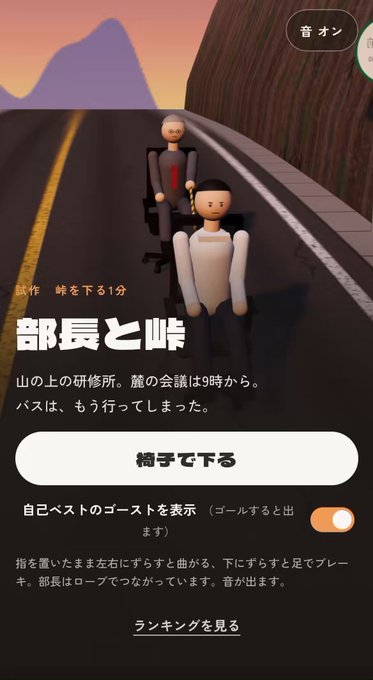
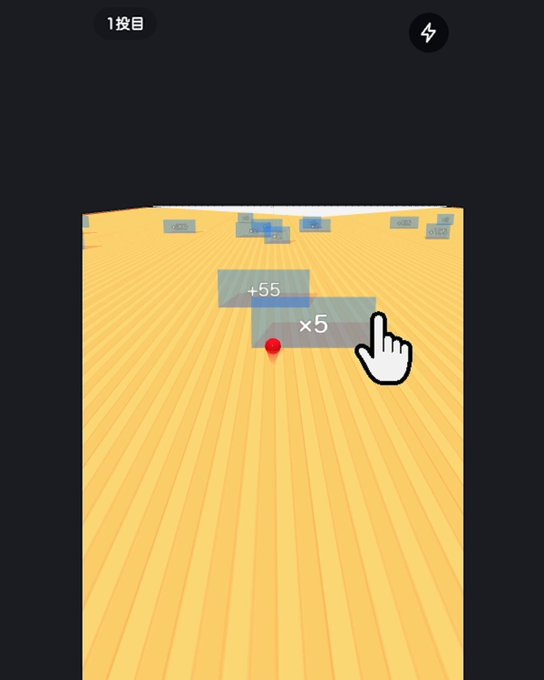
Browser Blackboard sits in the same casual web-toy space as the developer's other projects, including the fan-and-saury game Saury Fan, the fogged-glass writing toy Fogged Window, the line-drawing coaster Doodle Coaster, the wave-erased Sand Beach Canvas, the flick-based Scroll Curling, the look-away game HOI!, and the one-stroke batting game Doodle Home Run. Compared with those, the blackboard is the calmest and most open-ended: there is no goal, no opponent and no time pressure.
If you want a scored challenge, a drawing game with objectives or a full paint app, this is not that. Its appeal is tactile and nostalgic rather than competitive, and its closest cousins are simple canvas toys where the pleasure comes from the feel of the interaction. The lack of rules is the point, but it also means you need your own idea of what to draw.
It is best suited to quick breaks, handwriting practice, classroom-style jokes and anyone who enjoys sharing small creative results. Because it runs in a browser on both desktop and phones, it is easy to open anywhere, though the landscape recommendation matters on mobile. Check the official site, kokuban-2j2.pages.dev, for the current version and any changes, since small web toys can be updated without notice.
- Best for
Casual doodlers, handwriting fans and anyone who likes nostalgic classroom aesthetics or low-pressure creative toys.
- Less ideal for
Players who want scoring, levels, multiplayer or a full-featured drawing app with layers and export tools.
- Similar projects by the same developer
Fogged Window, Doodle Coaster, Sand Beach Canvas, Scroll Curling, HOI!, Doodle Home Run and Saury Fan offer different twists on simple browser interaction.
Step-by-Step Guide
Open the blackboard
Go to the official site, kokuban-2j2.pages.dev, in any modern browser. No install or account is needed. On a phone, rotate the device to landscape when prompted so the full board is visible.
Pick your chalk
Before drawing, set the vividness, thickness and color using the on-screen controls. Thick, bright chalk suits text, while a thinner, softer setting works better for detailed illustrations.
Write and erase
Trace your finger or mouse across the board to draw. Tap again to clap the chalk and erase in a smudgy way, or press clear all to wipe the board completely and start over.
Refine your drawing
Build the composition in passes, using clap-erase for small corrections and smudge effects. If the board feels slow, reload the page and close other heavy browser tabs.
Save and share
Take a screenshot of your finished board before clearing it. Then share it under #BrowserBlackboard and compare your chalk work with other players' boards.
Frequently Asked Questions
Is Browser Blackboard free, and do I need an app or account?
Yes, it is free to use in a browser on both PC and smartphones, and there is no app version or paid tier mentioned. You do not need to install anything or create an account. Just open the official page, kokuban-2j2.pages.dev, and start drawing. Check the official site for any future changes.
How do I erase what I have drawn?
Tap the board again to clap the chalk, which rubs out marks in a soft, dusty smear rather than deleting a clean line. For a full reset, use the clear-all button. The clap gesture is also handy for shading and for fixing small mistakes without wiping your whole drawing.
Does it work well on a phone?
Yes, it runs in smartphone browsers, but the page recommends rotating your phone to landscape so the board fills the screen and is easier to draw on. Performance depends on your browser, so if it feels laggy, reload the page, close other tabs and use an up-to-date browser.
Is there a score, timer or win condition?
No. Browser Blackboard is a sandbox toy with no scoring, levels or clear condition. You simply write, erase and clear the board however you like. The enjoyment comes from the chalk feel, the nostalgic classroom look and sharing your results under the #BrowserBlackboard hashtag.
Who made Browser Blackboard, and what else have they released?
It was created by Japanese indie developer Hinemosu Ryota and published on October 15, 2026. The same developer has released other browser toys, including Fogged Window, Doodle Coaster, Sand Beach Canvas, Scroll Curling, HOI!, Doodle Home Run and Saury Fan. You can find them through the official site.